Overview RBAC in CrewAI AMP enables secure, scalable access management through two layers:
Feature permissions — control what each role can do across the platform (manage, read, or no access)Entity-level permissions — fine-grained access on individual automations, environment variables, LLM connections, and Git repositories
Users and Roles Each member in your CrewAI workspace is assigned a role, which determines their access across various features.
You can:
Use predefined roles (Owner, Member)
Create custom roles tailored to specific permissions
Assign roles at any time through the settings panel
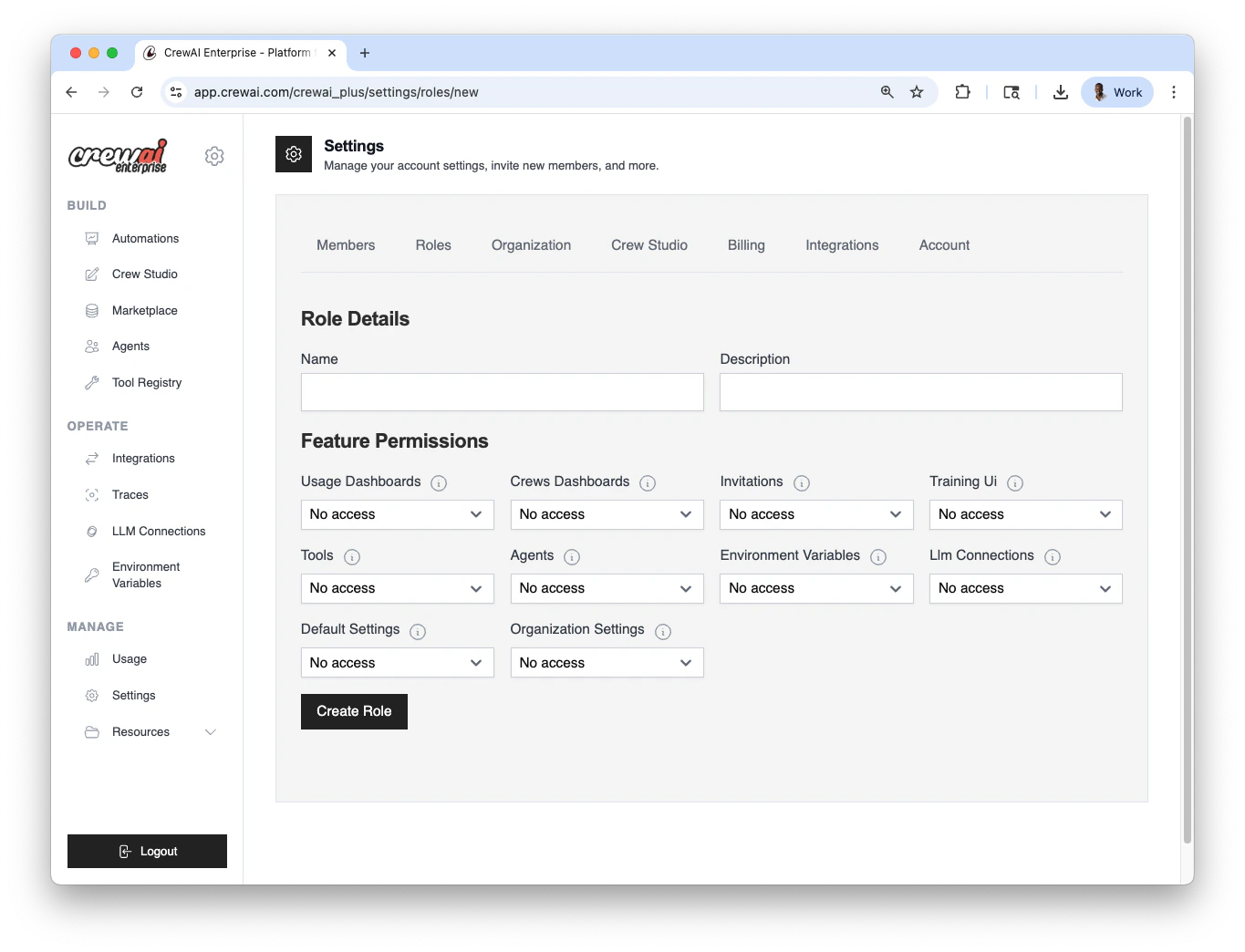
You can configure users and roles in Settings → Roles.
Open Roles settings
Go to Settings → Roles in CrewAI AMP.
Choose a role type
Use a predefined role (Owner , Member ) or click
Create role to define a custom one.
Assign to members
Select users and assign the role. You can change this anytime.
Predefined Roles Role Description Owner Full access to all features and settings. Cannot be restricted. Member Read access to most features, manage access to Studio projects. Cannot modify organization or default settings.
Configuration summary Area Where to configure Options Users & Roles Settings → Roles Predefined: Owner, Member; Custom roles Automation visibility Automation → Settings → Visibility Private; Whitelist users/roles
Feature Permissions Matrix Every role has a permission level for each feature area. The three levels are:
Manage — full read/write access (create, edit, delete)Read — view-only accessNo access — feature is hidden/inaccessible
Feature Owner Member (default) Description usage_dashboardsManage Read View usage metrics and analytics crews_dashboardsManage Read View deployment dashboards, access automation details invitationsManage Read Invite new members to the organization training_uiManage Read Access training/fine-tuning interfaces toolsManage Read Create and manage tools agentsManage Read Create and manage agents environment_variablesManage Read Create and manage environment variables llm_connectionsManage Read Configure LLM provider connections default_settingsManage No access Modify organization-wide default settings organization_settingsManage No access Manage billing, plans, and organization configuration studio_projectsManage Manage Create and edit projects in Studio
When creating a custom role, you can set each feature independently to Manage , Read , or No access to match your team’s needs.
Deploying from GitHub or Zip One of the most common RBAC questions is: “What permissions does a team member need to deploy?”
Deploy from GitHub To deploy an automation from a GitHub repository, a user needs:
crews_dashboardsRead — required to access the automations dashboard where deployments are createdGit repository access (if entity-level RBAC for Git repositories is enabled): the user’s role must be granted access to the specific Git repository via entity-level permissionsstudio_projects: Manage
Deploy from Zip To deploy an automation from a Zip file upload, a user needs:
crews_dashboardsRead — required to access the automations dashboardZip deployments enabled : the organization must not have disabled zip deployments in organization settings
Quick Reference: Minimum Permissions for Deployment Action Required feature permissions Additional requirements Deploy from GitHub crews_dashboards: ReadGit repo entity access (if Git RBAC is enabled) Deploy from Zip crews_dashboards: ReadZip deployments must be enabled at the org level Build in Studio studio_projects: Manage— Configure LLM keys llm_connections: Manage— Set environment vars environment_variables: ManageEntity-level access (if entity RBAC is enabled)
Automation‑level Access Control (Entity Permissions) In addition to organization‑wide roles, CrewAI supports fine‑grained entity-level permissions that restrict access to individual resources.
Automation Visibility Automations support visibility settings that restrict access by user or role. This is useful for:
Keeping sensitive or experimental automations private
Managing visibility across large teams or external collaborators
Testing automations in isolated contexts
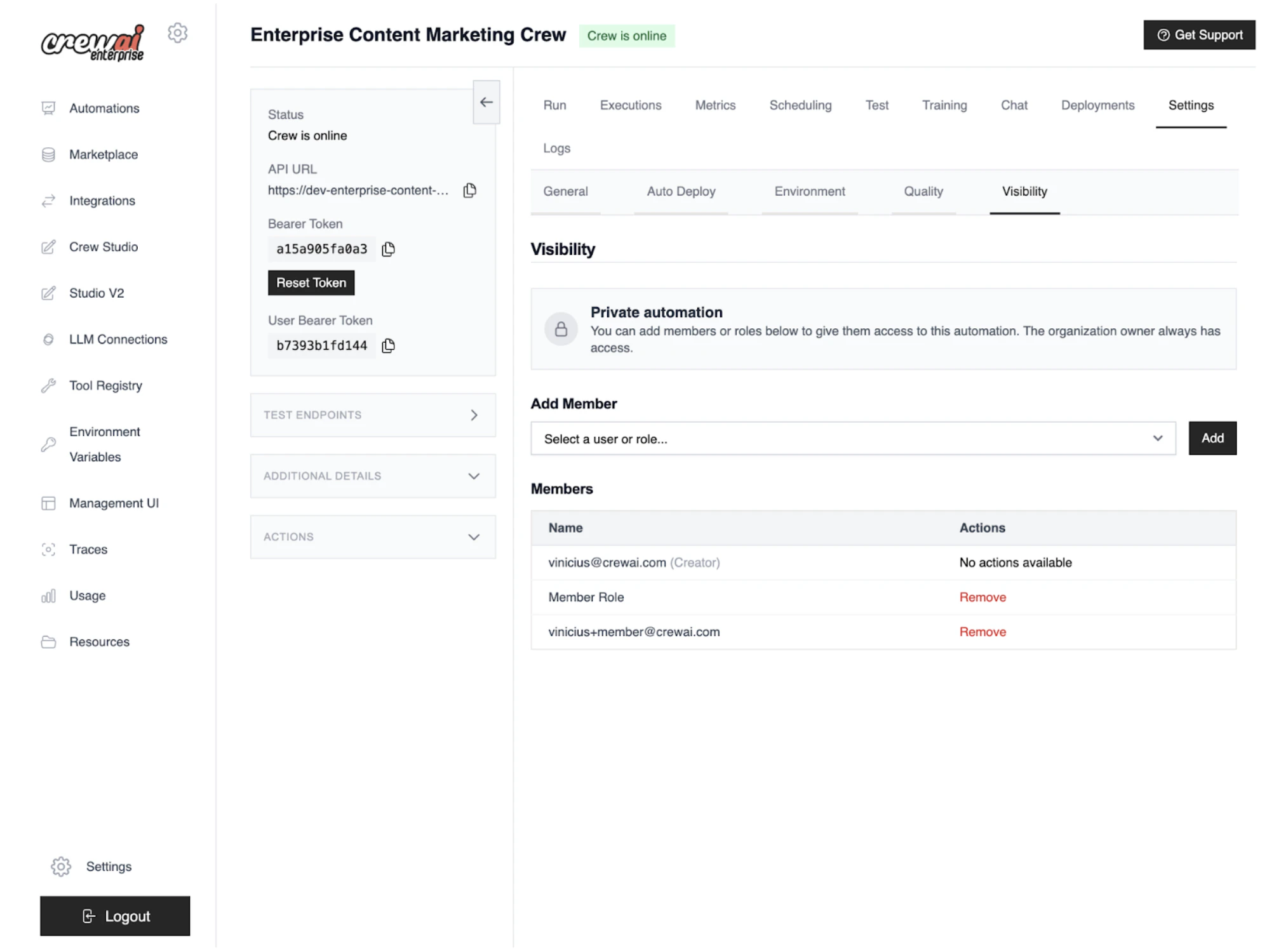
Deployments can be configured as private, meaning only whitelisted users and roles will be able to interact with them.
You can configure automation‑level access control in Automation → Settings → Visibility tab.
Open Visibility tab
Navigate to Automation → Settings → Visibility .
Set visibility
Choose Private to restrict access. The organization owner always
retains access.
Whitelist access
Add specific users and roles allowed to view, run, and access
logs/metrics/settings.
Save and verify
Save changes, then confirm that non‑whitelisted users cannot view or run the
automation.
Private visibility: access outcomes Action Owner Whitelisted user/role Not whitelisted View automation ✓ ✓ ✗ Run automation/API ✓ ✓ ✗ Access logs/metrics/settings ✓ ✓ ✗
The organization owner always has access. In private mode, only whitelisted
users and roles can view, run, and access logs/metrics/settings.
Deployment Permission Types When granting entity-level access to a specific automation, you can assign these permission types:
Permission What it allows runExecute the automation and use its API tracesView execution traces and logs manage_settingsEdit, redeploy, rollback, or delete the automation human_in_the_loopRespond to human-in-the-loop (HITL) requests full_accessAll of the above
Entity-level RBAC for Other Resources When entity-level RBAC is enabled, access to these resources can also be controlled per user or role:
Resource Controlled by Description Environment variables Entity RBAC feature flag Restrict which roles/users can view or manage specific env vars LLM connections Entity RBAC feature flag Restrict access to specific LLM provider configurations Git repositories Git repositories RBAC org setting Restrict which roles/users can access specific connected repos
Common Role Patterns While CrewAI ships with Owner and Member roles, most teams benefit from creating custom roles. Here are common patterns:
Developer Role A role for team members who build and deploy automations but don’t manage organization settings.
Feature Permission usage_dashboardsRead crews_dashboardsManage invitationsRead training_uiRead toolsManage agentsManage environment_variablesManage llm_connectionsRead default_settingsNo access organization_settingsNo access studio_projectsManage
Viewer / Stakeholder Role A role for non-technical stakeholders who need to monitor automations and view results.
Feature Permission usage_dashboardsRead crews_dashboardsRead invitationsNo access training_uiRead toolsRead agentsRead environment_variablesNo access llm_connectionsNo access default_settingsNo access organization_settingsNo access studio_projectsRead
A role for platform operators who manage infrastructure settings but may not build agents.
Feature Permission usage_dashboardsManage crews_dashboardsManage invitationsManage training_uiRead toolsRead agentsRead environment_variablesManage llm_connectionsManage default_settingsManage organization_settingsRead studio_projectsRead
Need Help? Contact our support team for assistance with RBAC questions.